Phone Storage Recovery Estimator
Select Category
Quick Wins for Immediate Space
Before you start hunting through your gallery, start with the low-hanging fruit. Most of the junk on your phone isn't actually your data, but data created by your apps. Cache is a temporary storage area where apps keep data so they load faster the next time you open them. While it's helpful, it can grow into gigabytes of waste over time.
- Clear Browser Cache: If you use Google Chrome or Safari, your browser stores images and site data from every page you visit. Clearing this can often recover 500MB to 1GB instantly.
- Social Media Bloat: Apps like TikTok and Instagram are notorious for storing massive amounts of cached video content. Check the "Settings" menu within the app itself to find the "Clear Cache" button.
- Offload Unused Apps: On iOS, there is a feature called "Offload Unused Apps." This removes the app's binary code but keeps your settings and documents. If you need the app again, you just tap the icon and it redownloads without losing your progress.
If you're on Android, head to your Settings > Storage and look for "Free up space." This usually suggests deleting large files or clearing the cache of the most bloated apps automatically.
Taming the Photo and Video Beast
Photos and videos are almost always the biggest space hogs. But you don't have to delete your memories to make room. The goal here is to move the clear phone storage burden from your internal hardware to an external or virtual environment.
First, tackle the "ghost' files. We all have ten versions of the same photo because we took a burst or tried a different angle. Use a duplicate finder app to merge identical images. Next, look at your screen recordings. A 5-minute screen recording in 4K can easily take up 1GB of space. Ask yourself: do I really need the video of that tutorial, or can I just bookmark the page?
The most effective strategy is using Cloud Storage, which is a service that saves your files on remote servers accessed via the internet instead of your device's local drive. Instead of keeping 10,000 photos on your device, you can keep them in the cloud and only keep the most recent 100 locally.
| Service | Best For | Key Benefit | Free Tier |
|---|---|---|---|
| Google Photos | Android Users | Powerful AI search and organization | 15 GB (shared) |
| iCloud | iPhone Users | Deep system integration and auto-backup | 5 GB |
| OneDrive | Work/Student | Seamless integration with Microsoft Office | 5 GB |
| Dropbox | File Sharing | Fast syncing of various file types | 2 GB |

Cleaning Up Messaging Apps
We often forget that WhatsApp, Telegram, and iMessage are basically storage traps. Every single meme, good-morning GIF, and 2-minute video your aunt sends is saved directly to your phone's internal memory.
In WhatsApp, for example, you can go to Settings > Storage and Data > Manage Storage. This view is a goldmine. It shows you exactly which chats are taking up the most space and allows you to filter for "Files larger than 5MB." You can delete the heavy videos while keeping the text conversations intact.
Another pro tip: Turn off "Save to Camera Roll" in your messaging app settings. This prevents every single image sent in a group chat from duplicating itself into your main photo gallery. You can still view the photo in the chat, but it won't eat your storage twice.
Managing Large App Data and Downloads
Ever wonder why a game that was 2GB when you downloaded it is now 12GB? That's due to "additional assets." Games like Genshin Impact or Call of Duty: Mobile download new maps and textures as you play. If you haven't played a game in three months but the data is still there, it's time to uninstall and reinstall it later.
Check your "Downloads" folder. This is where PDFs, airline tickets from 2022, and random web articles go to die. On Android, use the Files by Google app to identify large, old files that you no longer need. On iPhone, the "Files" app allows you to browse "On My iPhone" and delete documents that were only needed for a one-time project.
Streaming apps are another hidden culprit. If you use Spotify, Netflix, or YouTube, check your offline downloads. High-quality audio and video downloads can take up massive chunks of space. Many people forget they downloaded an entire season of a show for a trip that happened a year ago.
The Role of Hardware Upgrades
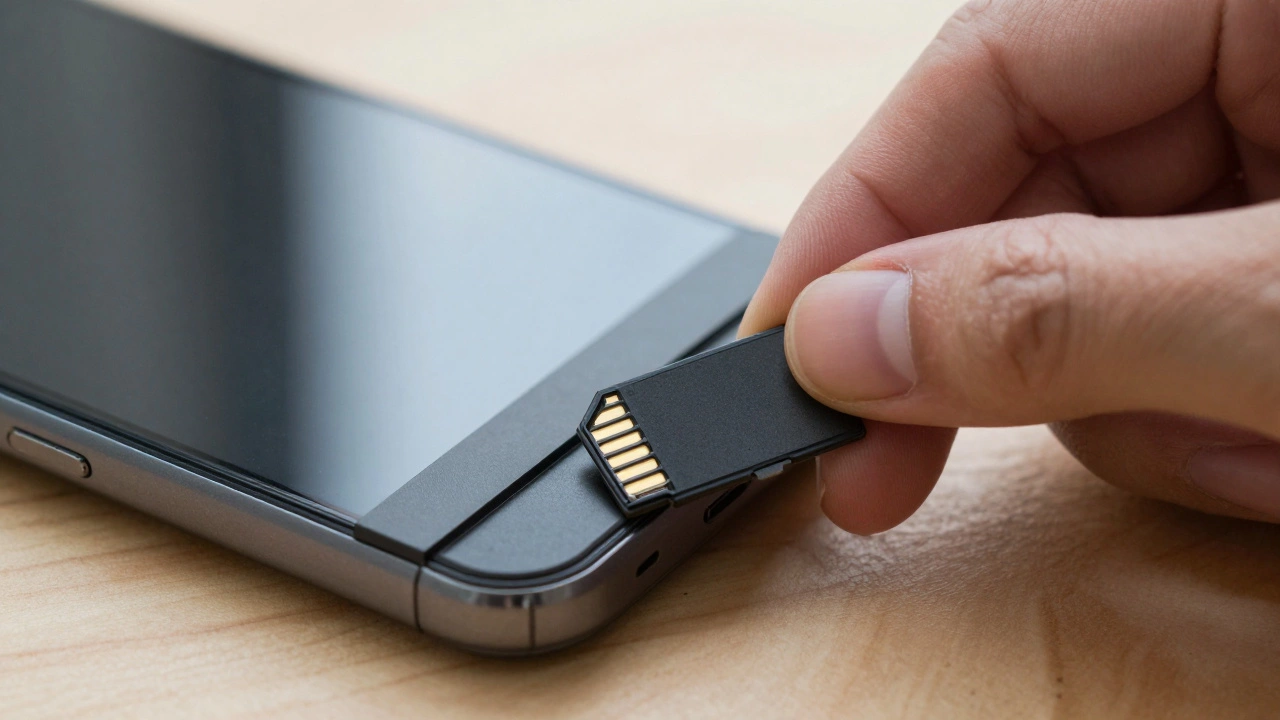
If you've done all the cleaning and you're still hitting a wall, you might be facing a hardware limitation. While iPhones don't support expandable memory, many Android devices have a slot for a microSD Card, which is a small, removable flash memory card used to expand the storage capacity of smartphones and tablets.
If your phone has this slot, move your "DCIM" (camera) folder and your music library to the SD card. This effectively moves the bulk of your data off the primary system drive, which helps the operating system run smoother. If you don't have an SD slot, consider a portable USB-C flash drive. You can plug it in once a month, move your old photos to it, and then tuck the drive away in a drawer.
Avoiding Future Storage Clogs
The best way to manage storage is to stop it from filling up in the first place. Change your camera settings to "High Efficiency" (HEIF/HEVC) instead of "Most Compatible" (JPEG). This uses a newer compression standard that keeps the quality high but cuts the file size nearly in half.
Set your cloud backups to "Optimize Storage." This means your phone keeps a low-resolution thumbnail of the photo for quick viewing, but the full-resolution version stays in the cloud. When you click the photo to edit it, the phone quickly downloads the high-res version. This can save you 20GB or more depending on your library size.
Finally, do a "monthly digital sweep." Pick one Sunday a month to clear your downloads folder and empty your "Recently Deleted" album. Most phones don't actually delete photos immediately; they move them to a trash bin for 30 days. If you're desperate for space right now, manually emptying that bin is the fastest way to see the numbers drop.
Will clearing my cache delete my app accounts?
No, clearing the cache will not log you out or delete your account data. It only removes temporary files like images or scripts that the app stored to load faster. However, "Clearing Data" or "Clearing Storage" in Android settings IS different-that will reset the app and log you out.
Does offloading apps delete my game saves?
No, offloading (specifically on iOS) removes the app itself but keeps the data and documents associated with it. Your game saves, settings, and login info remain on the device, so you can pick up right where you left off once you redownload the app.
Is cloud storage safe for my only copies of photos?
Cloud storage is very reliable, but the gold standard for backup is the 3-2-1 rule: three copies of your data, on two different media, with one copy off-site. If your photos are precious, keep them in the cloud AND on a physical hard drive at home.
Why does "System Data" or "Other" take up so much space?
"System Data" includes things like iOS/Android OS files, logs, Siri voices, and cached content from streaming apps. The best way to reduce this is to clear your browser cache, restart your phone, or perform a full backup and restore to the device.
Does using a cleaning app actually help?
Be careful. Many "Phone Cleaner" apps are actually filled with ads or are just wrappers for tools already built into your phone. It's usually safer and more effective to use the built-in storage manager in your settings or a trusted app like Files by Google.